
Hero Animation in Flutter
Hero Animation in Flutter allows for smooth transitions between screens by animating shared elements. This blog post delves into how to implement Hero animations effectively in your Flutter applications.
In this post, I’ll explore how to implement Hero animations in Flutter to create engaging and smooth transitions between screens.
What is Hero Animation?
Hero Animation in FLutter is a powerful feature that allows for smooth transitions between screens by animating shared elements.
When navigating from one screen to another, the Hero widget animates the transition of a widget from its position on the first screen to its position on the second screen, creating a visually appealing effect. Examples : Amazon app, Google Photos app.
Main 3 Components of Hero Animation
- To implement Hero Animation in your Flutter app, you need to understand the following main components:
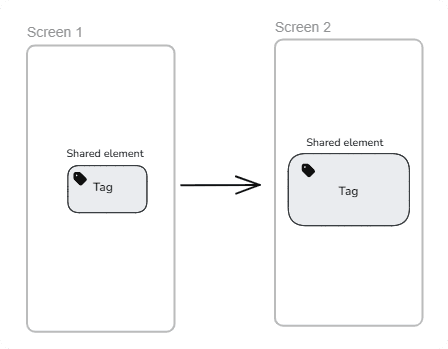
- Shared Widget: This widget is used to define the shared element that will be animated between screens. It requires a unique tag to identify the Hero across different screens.
- A Shared Tag: The tag is a unique identifier that links the Hero widgets on different screens. Both Hero widgets must have the same tag for the animation to work.
- Navigation: You need to navigate between screens using Flutter's Navigator class to trigger the Hero animation.
Implementing Hero Animation
- Look at the example that we are implementing Hero Animation.
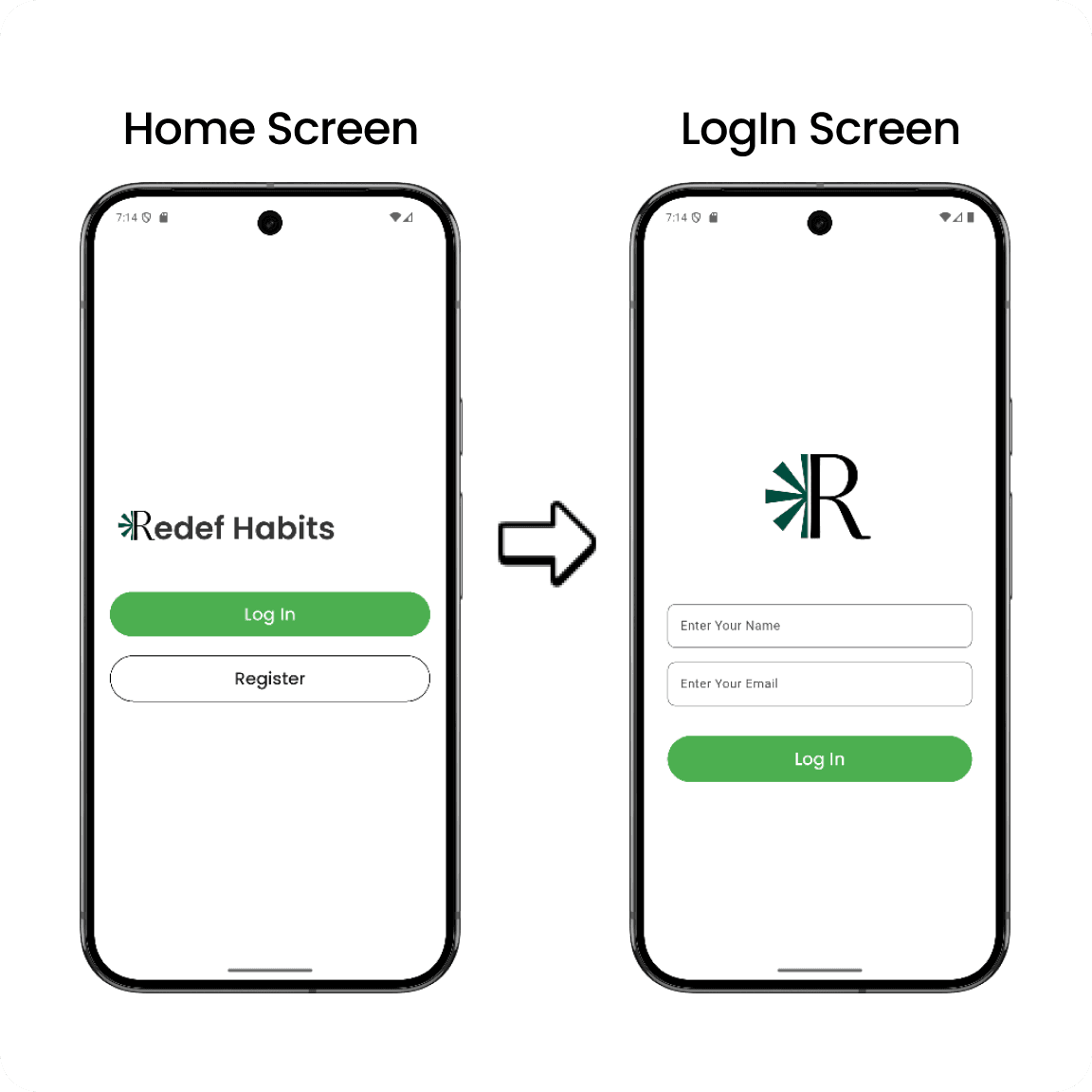
- We have 2 Screen in this example:
- Home Screen
- Login Screen
- Both Screen have one common Shared Widget (Image) with different
heightproperty.
Define the Shared Widget
-
In the example, we are using an Image as the shared widget. We wrap the Image widget with the Hero widget and provide a unique tag.
-
Herowidget is from Flutter material package and it has required propertytagwhich is used to identify the Hero widget across different screens.
// Home Screen
Hero(
  tag: 'logo',
  child: Image.asset(
    'assets/logo.png',
    height: 60.0, // Different height in Home Screen
  ),
);
// Login Screen
Hero(
tag: 'logo',
child: Image.asset(
'assets/logo.png',
height: 120.0, // Different height in Login Screen
),
);- Ensure that the
tagproperty is the same in both Hero widgets to link them together for the animation.
Navigate Between Screens
- Use Flutter's Navigator class to navigate between the Home Screen and Login Screen. This will trigger the Hero animation.
// Navigate to Login Screen
Navigator.push(
  context,
  MaterialPageRoute(builder: (context) => LoginScreen()),
);